Install just hours before your trip and activate during your flight or when you arrive at your destination.

Select “Install with QR Code”
if you have the code on another device to scan.

Select “Install Manually”
if you are unable to scan the QR code.

Select your device


Select the device which you are going to complete the process on

Select the type of installation you wish to perform

Before you begin installation with a QR code, there are a few important points to be aware of:

  • You must have the QR code on another screen or device to scan it with your phone camera.
  • Make sure you have a stable internet connection throughout the process.
  • Please note that the QR code can only be scanned once.
  • Do not remove the eSIM from your device as you will not be able to use it again.

Let’s get started together

Before you begin manual installation, there are a few important points to be aware of:

  • Manual installation codes can only be used once.
  • Make sure you have a stable internet connection throughout the process.
  • Do not remove the eSIM from your device as you will not be able to use it again.

Let’s get started together

Activation guide for your eSIM - iphone

Install with qr code

1. Install your data plan

The installation process will start automatically when you scan the QR code on your iPhone.

Click on Continue.

02. Mobile configuration completed

Your plan has now been installed.

Click on Done.

3. Label your data plan.

Give your new HoppaSIM line a name to identify it. For example: “HoppaSim France”.

Click on Continue.

4. Choose your default line

Select the “Primary” option to continue using your number to receive messages and calls.

Click on Continue.

5. iMessage and FaceTime

Select the “Primary” option to continue using your number for iMessage and FaceTime.

Click on Continue.

6. Mobile data

Select the “Secondary” option.

Keep “Allow Mobile Data Switching” turned off to avoid additional roaming charges.

Click on Continue.

manual installation

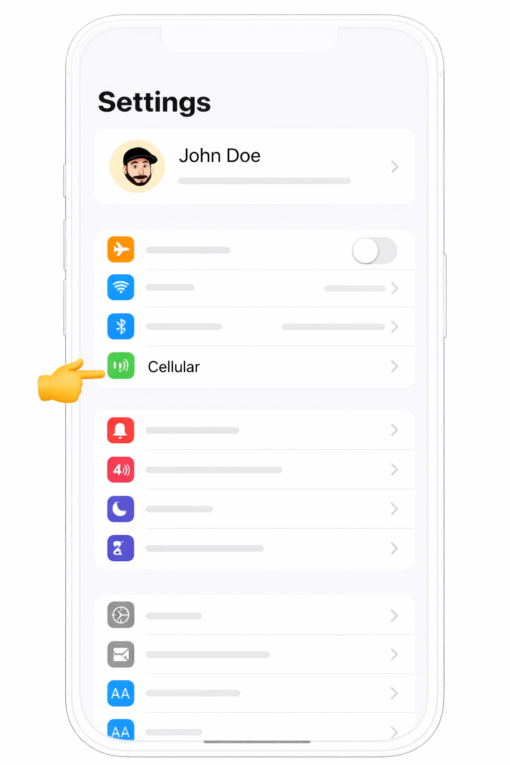
01. Go to Settings

Once there, click on “Mobile Data”, then “Add eSIM” or “Add Data Plan” and select “Use QR Code”.

Finally, click on “Enter Details Manually”

02. Add your data plan

Now it’s time to copy and paste the SM-DP + address and Activation Code into the corresponding field.

Click on Next

3. Install your data plan

Your iPhone will show you your new data plan.

Press “Continue” and wait for your plan to be installed (this can take a few minutes).

4. Choose your default line

Select the “Primary” option to continue using your number to receive messages and calls.

Click on Continue.

5. iMessage and FaceTime

Select the “Primary” option to continue using your number for iMessage and FaceTime.

Click on Continue.

6. Mobile data

Select the “Secondary” option.

Keep “Allow Mobile Data Switching” turned off to avoid additional roaming charges.

Click on Continue.

6. Mobile data

Select the “Secondary” option.

Keep “Allow Mobile Data Switching” turned off to avoid additional roaming charges.

Click on Continue.

6. Mobile data

Select the “Secondary” option.

Keep “Allow Mobile Data Switching” turned off to avoid additional roaming charges.

Click on Continue.

Congratulations! Your plan has now been installed and is ready to activate.

See Activation Process

Activation guide for your eSIM

To activate:

  • You must be at the destination for which you purchased your eSIM.
  • We recommend downloading this guide as a PDF so you can access the instructions even when you are offline.
  • We recommend downloading this guide as a PDF so you can access the instructions even when you are online.

1.

Open Settings on your iPhone and select Mobile Data

2.

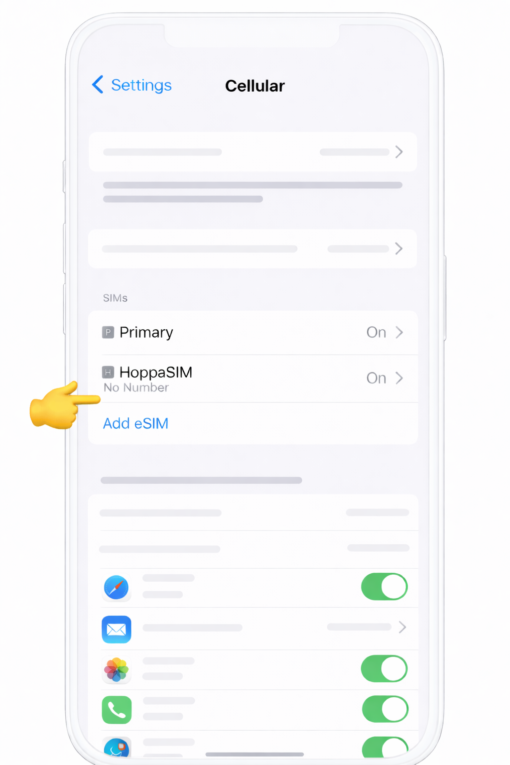
Select the HoppaSim Option from the list

3.

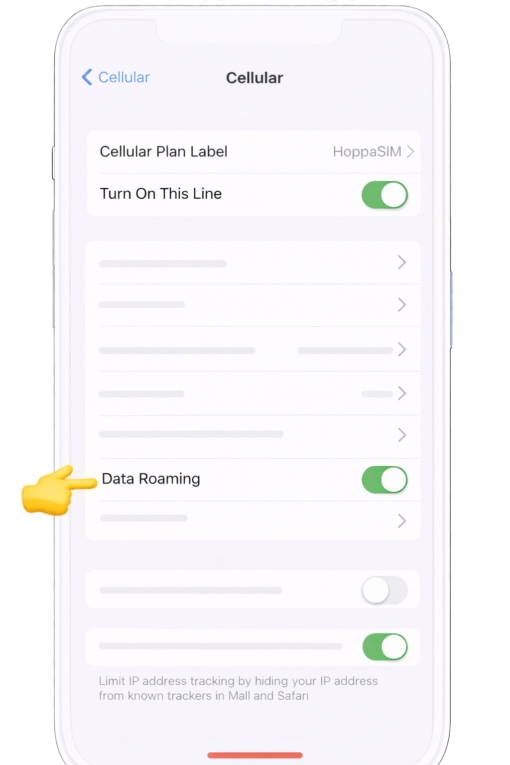
Scroll until you find Data Roaming and enable it

That’s it! Your plan is now active and you can start using your data.

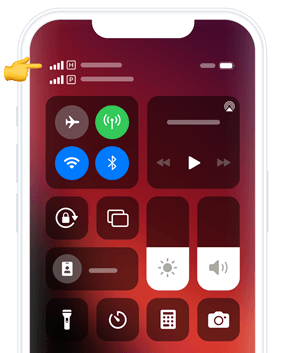
How do you know your eSIM is active?

You can check in two ways:

  • Make sure there is at least one bar in the signal icon on your iPhone.
  • Go to “Settings” on your iPhone, select “Mobile Data”, click on the “HoppaSim” option and check that “Data Roaming” is turned on.

Don’t worry! We are here for you.

If you have any questions during this process, remember we’re here to assist you 24/7 through our Online chat.

Contact us Lets Chat